

How to upgrade the IR touch screen firmware
Before you start the upgrading processes, you need to change the time of computer system:2019-05-31
1. Connect the touch screen to the computer via a USB cable.
2. Double click to run the USB upgrade program "VID = 0x1FF7 \
MultiTouchUsbUpgrade-notime.exe", as shown in the figure below.

The below figure shows that the touch screen is connected to the computer.
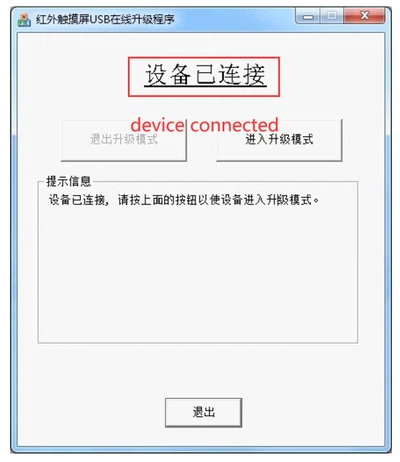
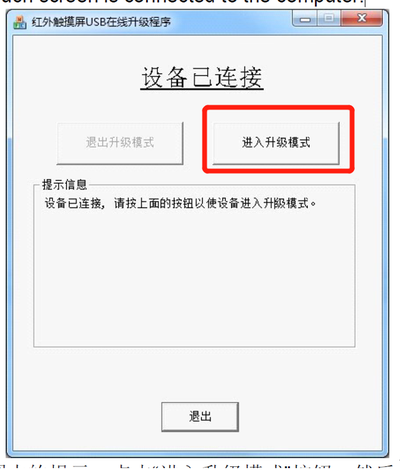
3. Click the below right button to enter the upgrading mode.
4. Then click the below button to exit.

5. Disconnect the touch screen USB cable from the PC, then connect it again. If it’s difficult to disconnect the touch screen cable, please turn off the PC, and disconnect the PC power cable for at least 10 seconds, to make sure the touch screen is powered off. Turn on the PC again after this.
6. Double-click to open the USB upgrade program "VID = 0x595A \MultiTouchUsbUpgrade-notime.exe", as shown in the figure below.

7. The figure shows that the touchscreen device has entered the upgrade state, the enter upgrading module button is in gray color. Click the right bottom button for the next step.

8. Click the right bottom to browse and select the upgrading file, ending with .bin,

9. After selecting the upgrading file, the file information will be shown here:

10. Click the left bottom button to start the upgrading.

11. After upgrading is finished, click the middle button to confirm upgrading is finished.

12. Then click the bottom button to exit.

13. Disconnect and reconnect the touch screen cable again, the touch screen will work properly now. If it’s difficult to disconnect the touch screen cable, please turn off the PC, and disconnect the PC power cable for at least 10 seconds, to make sure the touch screen is powered off. The touch screen should work properly after the PC is turned on.
Here is the video manual
Contact Us for More

tel: +86-7552942 0029

phone: +86-135 1008 1752

envelope: sales@kioskmachine.net

address: Gongming, Guangming, China

WhatsApp: +86 135 1008 1752
Follow Us for More
 facebook
  linkedin
  twitter
  youtube
  instagram


